Operation
This section explains every part of the SatTracker screen and how to use it while working satellites.
Screen Layout
The 800 × 480 display is divided into four areas:
┌─────────────────────────────────────────────────────────────────────────┐
│ TOP BAR: clock, UTC, grid square, now / next pass, WiFi, settings       │
├──────────────────────────────────────────────┬──────────────────────────┤
│                                              │                          │
│                  WORLD MAP                   │       DETAIL PANEL       │
│  satellites, tracks, footprint, night side   │  selected satellite:     │
│                                              │  az / el / range,        │
├──────────────────────────────────────────────┤  sky plot,               │
│                 PASS TIMELINE                │  frequencies             │
│    next 12 hours, one row per satellite      │  [PASSES] [SATS] [bell]  │
└──────────────────────────────────────────────┴──────────────────────────┘
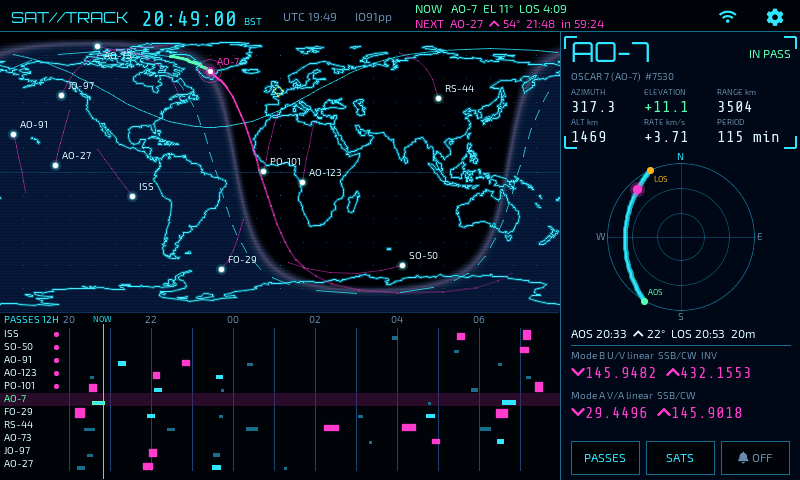
The main screen while the selected satellite (AO-7) is making a pass. Daylight is over the Americas, night over Europe, Africa and Asia, with the grey line between.
The display updates once a second.
The Top Bar

From left to right:
- Title
SAT//TRACK (NEON) or SATTRACKER (OPS).
- Clock
Local time in your chosen timezone, with the zone abbreviation (e.g.
BST) beside it.- UTC
The current UTC time, as used by most satellite schedules and logs.
- Grid square
Your home location as a 6-character Maidenhead locator.
- Now and next
Two lines:
NOW(green) — the tracked satellite that is above your horizon right now, its current elevation and the time until it sets, e.g.NOW AO-7 EL 12° LOS 3:24. If several are up, the highest is shown with+1,+2… for the others.nothing above horizonwhen none is up.NEXT— the next good pass (see Pass Alerts) that has not started yet, with its maximum elevation, local AOS time and countdown, e.g.NEXT ISS ▲ 88° 07:52 in 0:09.
Before predictions are available this area shows
TIME NOT SYNCED(the clock has not been set from the internet yet) orPREDICTING...(the first prediction run is in progress).- WiFi status
The WiFi symbol when connected,
APwhile the setup hotspot is running, or a cross when not connected.- Settings
The gear icon opens the settings page (see Configuration).
The World Map
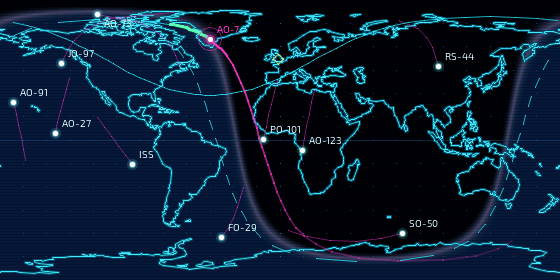
The map is a flat (equirectangular) projection of the whole Earth, north at the top.
- Day, night and grey line
The daylit half of the Earth is lit (deep blue in NEON, grey in OPS) and the night half is dark. Along the boundary runs the grey line, a lighter band where the sun is just below the horizon (civil twilight, centred on 3° below). The terminator moves west at 15° of longitude an hour, so the movement is slow to watch — compare the map an hour apart. The shading is redrawn every minute. It is useful for HF grey-line propagation and for seeing which satellite passes will be in sunlight.
- Your home
Marked with a small diamond (NEON) or ring (OPS).
- Satellites
Every tracked satellite is shown with its name and a short trail behind it (the last ten minutes of its ground track). The marker colour tells you its state:
State
NEON
OPS
Below your horizon
cyan dot
white square
Above your horizon
green dot
green square
Selected
magenta dot with pulsing ring
amber square with crosshair
- Selected satellite
The satellite shown in the detail panel also gets:
its footprint — the circle on the Earth from which it is currently above the horizon. When your home is inside the circle, you can work it.
its recent track (a fading trail behind it)
its future track — a dashed line (NEON) or a line with a dot every five minutes (OPS), running far enough ahead to reach its next pass over you
the next pass — the stretch of future track where it will be above your horizon, drawn as a thick green line and tagged with the acquisition time, e.g.
AOS 22:04
Tip
Many amateur satellites are in polar orbits. After a pass from north to south the satellite goes on over the South Pole, up the far side of the Earth and back over the North Pole, so its next pass is often an orbit (about 95 minutes) later and starts in the north. Follow the dashed future track to see it come round.
- Selecting a satellite
Tap a satellite on the map to select it. SatTracker can also select each satellite for you as it rises — see Auto-select satellite at AOS in Pass Alerts.
The Pass Timeline
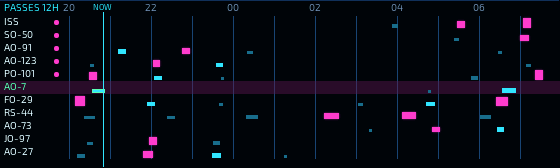
The timeline covers one hour back and eleven hours ahead, with a row for each tracked satellite and the hours (local time) along the top. The vertical NOW line marks the present.
Each pass is a bar from AOS to LOS. The taller the bar, the higher the pass, and its colour shows how good it is:
Pass |
NEON |
OPS |
|---|---|---|
Good (at or above your threshold) |
magenta |
amber |
Medium (15° up to the threshold) |
cyan |
teal |
Low (under 15°) |
dim blue |
dim teal |
A dot after a satellite's name means alerts are on for it. The selected satellite's row is highlighted. A satellite that is above your horizon right now has its name in green, and its current pass bar is outlined in green. A geostationary satellite such as QO-100 has no passes; its row shows its fixed azimuth and elevation from your location instead.
Tap a row to select that satellite.
Tap the header line (the hours) to open the upcoming-passes table.
The Detail Panel
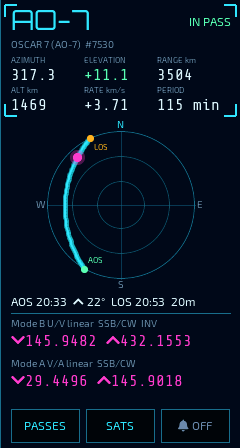
The right-hand panel describes the selected satellite.
Name and Status
The short name (e.g. AO-91) with its full catalogue name and NORAD number below.
At the top-right a status shows:
IN PASS— the satellite is above your horizon nowAOS 1h32/AOS 6:15— time until its next pass beginsGEO UP/GEO DOWN— a geostationary satellite visible / not visible from your locationNO PASS— no pass in the next 24 hoursPREDICTING— passes are being calculated (a few seconds after start-up)NO TIME(amber) — the clock has not been set from the internet yet, so positions and passes cannot be trusted
Live Readings
AZIMUTH |
Compass bearing to the satellite, degrees (0 = north, 90 = east) |
ELEVATION |
Angle above the horizon, degrees. Negative = below the horizon. Shown in green while the satellite is up. |
RANGE km |
Straight-line distance from you to the satellite |
ALT km |
Height of the satellite above the Earth |
RATE km/s |
How fast the range is changing: negative = approaching, positive = receding. This drives the Doppler shift. |
PERIOD |
Time for one orbit, or |
Sky Plot
The circle is your sky seen from below: the edge is the horizon, the centre is straight overhead, and the rings are 30° and 60° elevation, with north at the top. The curve is the path of the current or next pass, from AOS (green dot) to LOS (orange dot). During the pass a bright dot shows where the satellite is now — point your antenna there.
Below the plot, the pass summary gives AOS time, maximum elevation, LOS time and
duration, e.g. AOS 21:23 ▲ 31° LOS 21:36 12m. It is shown in the accent colour
when the pass is a good one.
Tap the sky plot to open the upcoming-passes table.
Frequencies
Up to two transmitters are shown for the selected satellite, workable ones first. Each takes two lines:
Description and mode, e.g.
U/V FM repeater CTCSS 141.3orV/U linear SSB/CW INV.INVmarks an inverting linear transponder (an upper sideband uplink comes down as lower sideband, and tuning up the uplink tunes down the downlink).RX ONLYmarks a beacon or telemetry downlink.Frequencies in MHz: ▼ the downlink (what you listen to) and ▲ the uplink (what you transmit on). For a linear transponder the centre of the passband is shown.
While the satellite is above (or within a few degrees of) your horizon, the frequencies are Doppler-corrected and shown in the accent colour:
the downlink is the frequency the signal actually arrives on
the uplink is the frequency to transmit on so the satellite hears its nominal frequency
As the satellite approaches, the downlink is shifted up and the uplink down; at the moment of closest approach the shift passes through zero, and as it recedes the directions reverse. At 435 MHz the shift is up to about ±10 kHz, and at 145 MHz about ±3.5 kHz.
Tip
For FM satellites, set your radio to the nearest 5 kHz step to the displayed downlink, and step it as the display moves. For the uplink most operators leave 145 MHz fixed and correct only the 435 MHz side.
Upcoming Passes Table
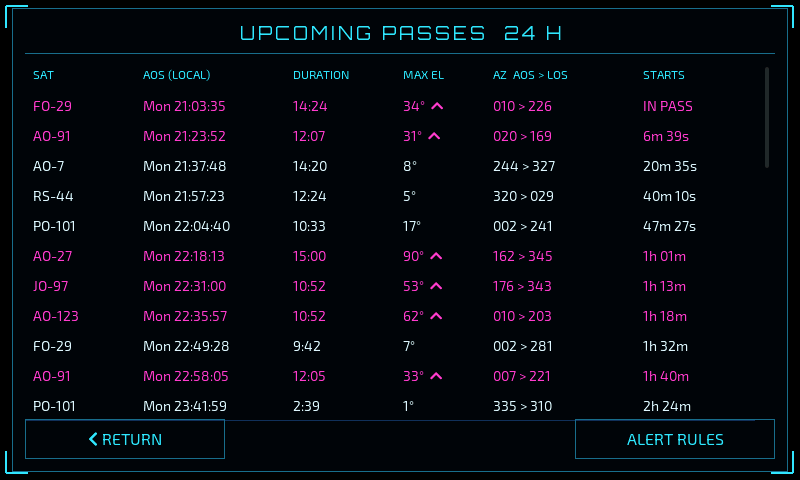
All passes of all tracked satellites in the next 24 hours, in time order:
SAT |
Satellite |
AOS (LOCAL) |
Day and local time the satellite rises above your horizon |
DURATION |
Length of the pass (minutes:seconds) |
MAX EL |
Highest elevation; ▲ marks a good pass |
AZ AOS > LOS |
Compass bearing where it rises and where it sets |
STARTS |
Countdown to AOS, or |
Good passes are shown in the accent colour. Tap a row to select that satellite and return to the main screen. ALERT RULES opens the alert settings.
Pass Alerts
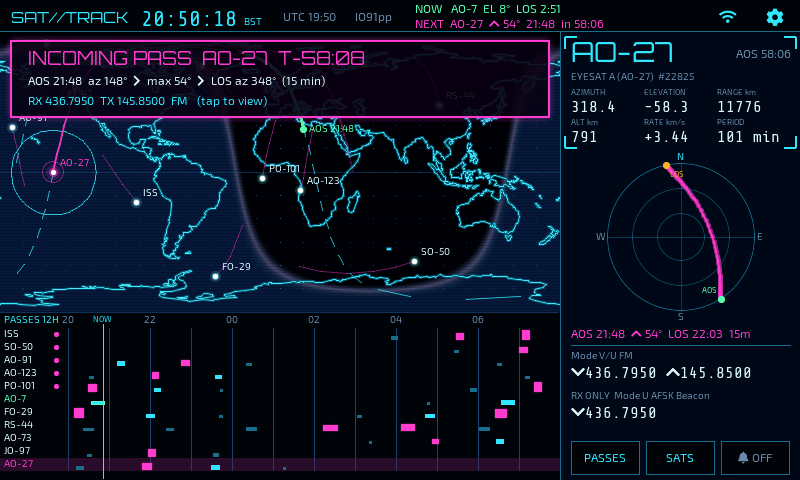
The INCOMING PASS banner for a 54° pass of AO-27, with a countdown to AOS.
When a satellite with alerts turned on is about to make a good pass, a banner appears over the map:
INCOMING PASS with a countdown, at the configured time before AOS (10 minutes by default)
ACQUISITION when the satellite rises (AOS)
The banner shows the AOS time and azimuth, the maximum elevation, the LOS azimuth and the pass duration, and the satellite's main receive and transmit frequencies, mode and CTCSS tone. Tap the banner to select the satellite; it closes by itself after a minute.
If night mode has turned the screen off, an alert turns it back on for five minutes.
Each pass alerts once — recalculating the predictions does not repeat an alert.
Choosing Satellites
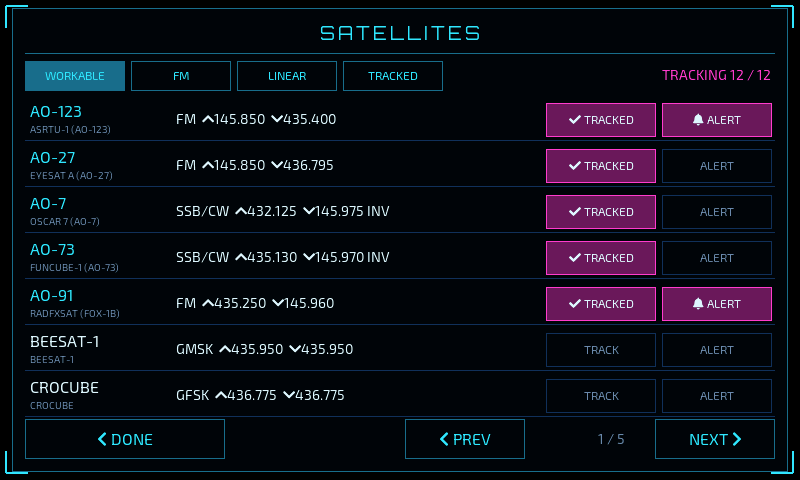
Tap SATS (or Settings → SATELLITES) to choose which satellites to track.
Filter the list with WORKABLE (every satellite with a usable transponder or repeater), FM, LINEAR or TRACKED (your current selection).
Each row shows the satellite, its catalogue name, and its main mode with uplink ▲ and downlink ▼ frequencies.
TRACK adds the satellite to the map, timeline and predictions; tap again to remove it.
ALERT turns good-pass alerts on or off (and tracks the satellite if it isn't already).
PREV / NEXT page through the list;
TRACKING 11 / 12shows how many you are tracking out of the maximum of 12.
Tap DONE to return. Predictions for a changed selection are ready a few seconds later.
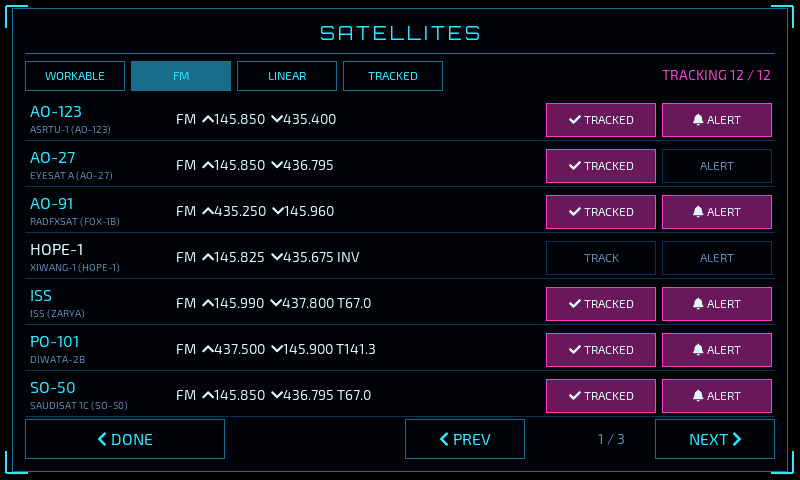
The picker filtered to FM satellites.
Out of the box SatTracker tracks the ISS, SO-50, AO-91, AO-123 and PO-101 (with alerts), and AO-7, FO-29, RS-44, AO-73, JO-97 and QO-100.
Geostationary Satellites (QO-100)
QO-100 sits over the equator at 25.9° E and does not move across the sky, so it has
no passes. Its timeline row and detail panel show its fixed azimuth and elevation from
your location (for example, about 148° and 26° from southern England), or
GEO DOWN if it is below your horizon. The Doppler correction applied to its
frequencies is negligible, because a geostationary satellite barely moves relative
to you.