Configuration
All settings are made on the touchscreen and saved in the device's non-volatile memory, so they survive power cuts and firmware updates.
The Settings Page
Tap the gear icon at the top-right of the main screen.
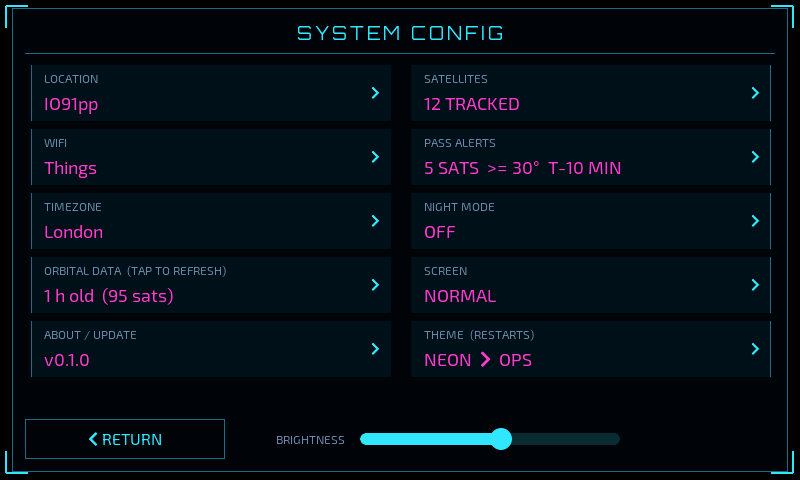
Each row shows a setting and its current value; tap a row to change it. Tap RETURN to go back to the main screen.
LOCATION |
Your home position (grid square shown) |
WIFI |
Saved WiFi networks (current network shown) |
TIMEZONE |
Timezone for local times |
ORBITAL DATA |
Age of the orbital data and satellite count; tap to download fresh data now |
ABOUT / UPDATE |
Device information and firmware update |
SATELLITES |
Which satellites are tracked (number shown) |
PASS ALERTS |
Good-pass rules (summary shown) |
NIGHT MODE |
Overnight screen-off schedule |
SCREEN |
Normal or rotated 180° |
THEME |
NEON or OPS (the device restarts to apply) |
BRIGHTNESS |
Backlight level slider (on dimmable hardware) |
Location
See Setting Your Home Location in Getting Started. Enter a Maidenhead grid square (4, 6 or 8 characters) and tap Set grid, or enter latitude and longitude in decimal degrees and tap Set coords. Tap Done to close. All passes are recalculated for the new position.
WiFi
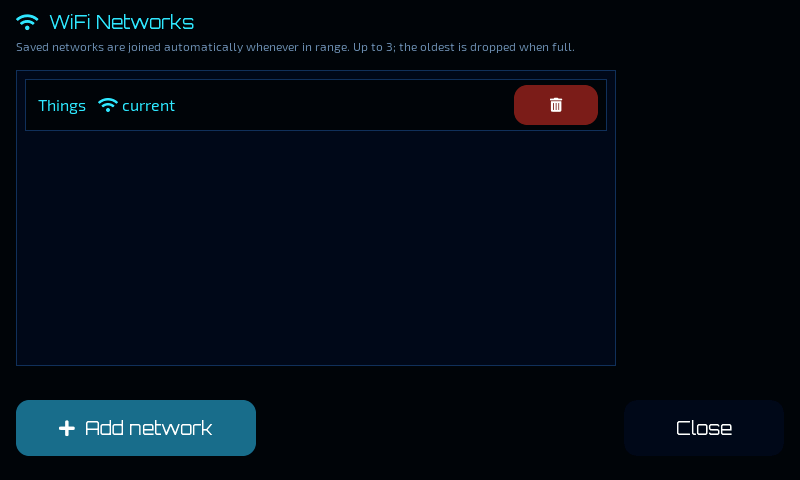
The WiFi Networks page lists the saved networks. SatTracker remembers up to three and joins whichever is in range; when a fourth is added, the oldest is dropped.
Add network opens the scan list and password entry described in Getting Started.
The red bin button forgets a network.
Close returns to settings.
Timezone
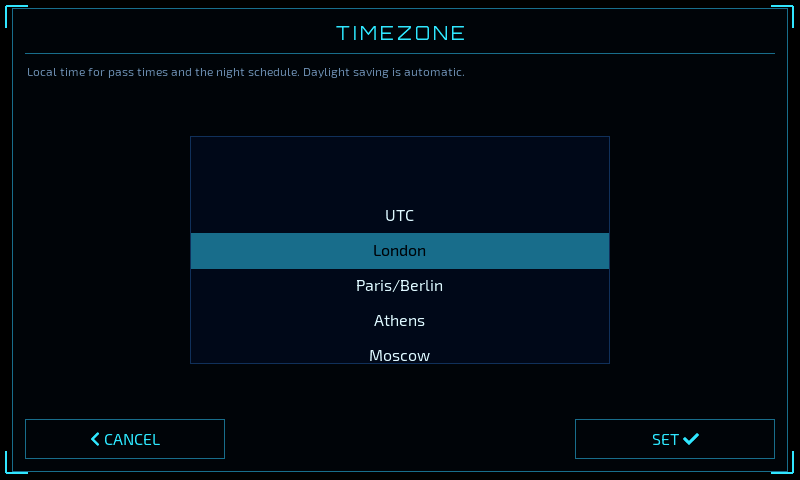
Scroll the list to your zone and tap SET. Eighteen zones are available: UTC, London, Paris/Berlin, Athens, Moscow, Dubai, Mumbai, Bangkok, Singapore, Tokyo, Sydney, Auckland, New York, Chicago, Denver, Los Angeles, Honolulu and São Paulo. Daylight saving time changes are applied automatically.
The timezone affects the clock, the pass times in the timeline, pass table, detail panel and alerts, and the night-mode schedule. Predictions themselves are always made in UTC.
Orbital Data
The row shows how old the downloaded orbital data is, e.g. 3 h old (95 sats).
BUILT-IN means the device is still using the data built into its firmware because
it has not yet completed a download.
SatTracker downloads fresh data from CelesTrak once a day by itself. Tap the row to
download now — useful after a satellite has manoeuvred, or when a newly launched
satellite has just been catalogued. The row shows DOWNLOADING... while it works.
Satellites
Opens the satellite picker described in Operation. You can track up to 12 satellites at once. Tracking fewer makes the map and timeline easier to read.
Pass Alerts
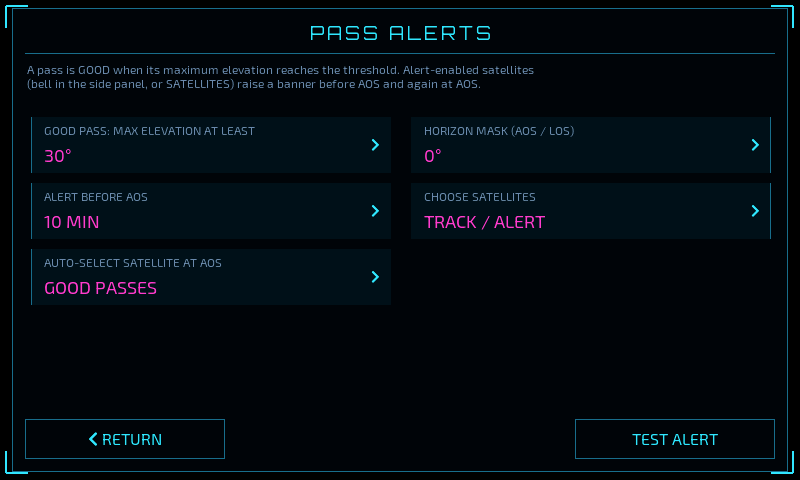
Tap a row to step through its values:
Setting |
Values |
Default |
|---|---|---|
GOOD PASS: MAX ELEVATION AT LEAST |
10°, 20°, 30°, 45°, 60° |
30° |
ALERT BEFORE AOS |
2, 5, 10, 15, 30 min |
10 min |
HORIZON MASK (AOS / LOS) |
0°, 5°, 10°, 15° |
0° |
AUTO-SELECT SATELLITE AT AOS |
OFF, GOOD PASSES, ALL PASSES |
OFF |
Good pass — a pass whose highest elevation reaches this value. Good passes are highlighted in the timeline and pass table, shown on the top bar's NEXT line, and raise alerts. Low passes are short and often obstructed; 30° is a good starting point for an omni-directional antenna, and you can lower it if you have a clear horizon and a beam.
Alert before AOS — how far ahead the INCOMING PASS banner appears. A second ACQUISITION banner appears at AOS.
Horizon mask — the elevation at which a pass is considered to start and end. If trees or buildings hide your low horizon, set 5° or 10° so that AOS and LOS times match when you can actually hear the satellite. Changing the mask recalculates the passes and shrinks the footprint circle on the map to match.
Auto-select satellite at AOS — switches the detail panel, map footprint and sky plot to a satellite as it rises, so the screen is ready for the pass without touching it. GOOD PASSES switches only for passes that reach the good-pass elevation; ALL PASSES switches for any pass of a tracked satellite. It works with or without alerts turned on for the satellite.
It never switches away from the selected satellite while that satellite is still above your horizon. If another satellite rises during the pass, the panel moves to it when the first one sets (the higher pass first, if several are up).
If you select a satellite yourself, passes already in progress are left alone; the next satellite to rise is selected as usual.
CHOOSE SATELLITES opens the satellite picker, where the ALERT buttons choose which satellites raise alerts. You can also use the bell button in the detail panel.
TEST ALERT shows a sample banner for the next good pass.
Night Mode
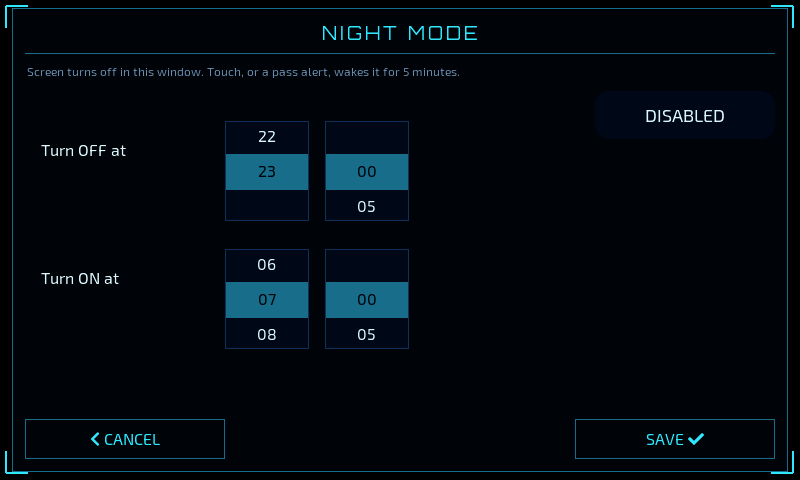
Turns the screen off overnight. Tap ENABLED / DISABLED to switch the schedule on or off, set the Turn OFF at and Turn ON at times (local time, five-minute steps), and tap SAVE.
While the screen is off:
Touching it turns it on for five minutes. The first touch only wakes the screen; it doesn't operate the button under your finger.
A pass alert turns it on for five minutes so you see the banner.
Tracking, prediction and data downloads carry on as normal.
Screen
Tap to switch between NORMAL and ROTATED 180, for mounting the device upside down. The change is immediate; the touch panel is rotated to match.
Theme
Tap to switch between the two display themes. The device restarts to apply the new theme (about five seconds); all your settings are kept.
- NEON
A futuristic holographic HUD — deep-space background, cyan and magenta neon, glowing coastlines, a comet-tail trail on the selected satellite and angled corner brackets. Text is set in Exo 2 and Orbitron, numbers in Share Tech Mono.
- OPS
A hi-tech mission-control console — charcoal panels, crisp white, amber and teal, a labelled latitude/longitude grid and five-minute ticks along the future track. Text is set in IBM Plex Sans Condensed, numbers in IBM Plex Mono.
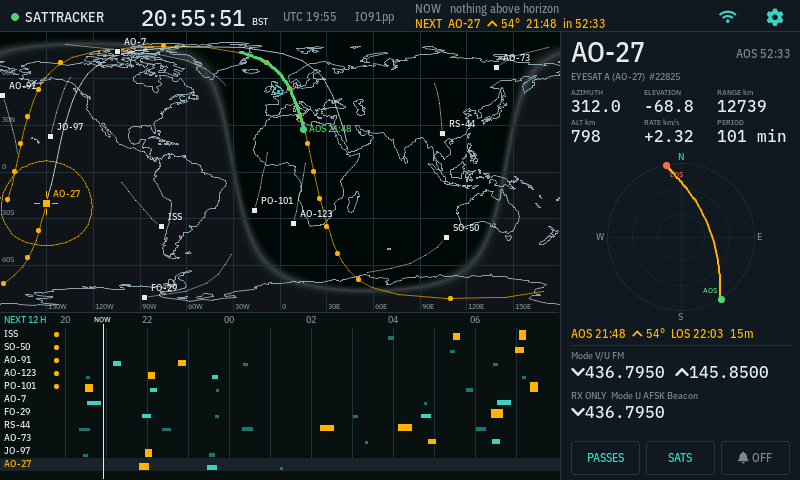
The OPS theme.
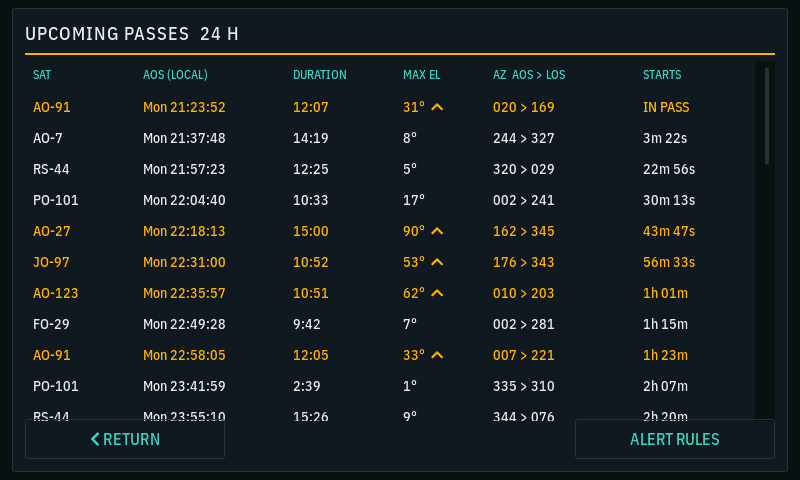
The upcoming-passes table in the OPS theme.
Brightness
On hardware with a dimmable backlight, the BRIGHTNESS slider at the bottom of the settings page sets the level from 10% to 100%. It takes effect as you drag and is saved when you let go. On hardware without dimming the slider is not shown.
About / Update
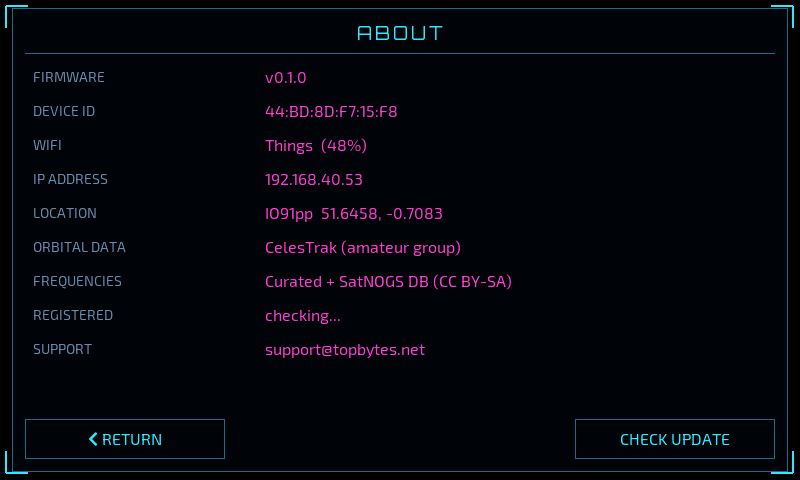
Shows the firmware version, the device ID (needed when registering or contacting support), the WiFi network and signal strength, IP address, home location, data sources and registration status.
CHECK UPDATE asks the TopBytes update service for newer firmware straight away (the device also checks by itself). See Over-The-Air (OTA) Firmware Updates.